Home
Turn Off Laptop Monitor,Turn Off Monitor and much more
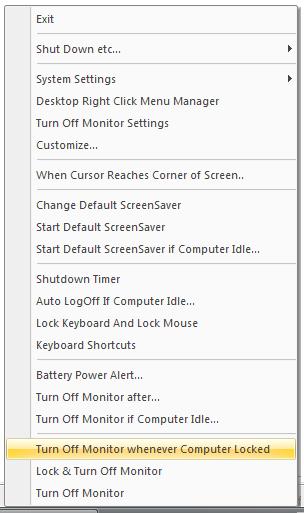
Turn Off Monitor System Tray Icon
Download Free Trial of Turn Off Monitor Utility Download Free Trial of Turn
Off Monitor Utility
- Turn Off Laptop Monitor Using System Tray Icon
- Turn Off Desktop Monitor Using System Tray Icon
- Turn Off Monitor by pressing System Wide Hot Key on Keyboard
- Turn Off Monitor by clicking on Desktop Shortcut
- Standby Monitor/Turn Off Monitor without closing all the running programs
- Laptop Monitor when Turned off can save electricity and hence battery time
- To Turn On Monitor Move Mouse or Press Some Key on Keyboard
- Start Default Screen Saver
- Easily Launch Control Panel Items
- Easily ShutDown Computer
- Easily Log Off Current User
- Easily Restart Computer
- Easily Stand By Computer (wherever supported)
- Easily Hibernate Computer (wherever supported)
- Lock WorkStation and Turn Off Monitor (wherever supported)
- Turn Off Monitor If Computer Remains Idle for n Minutes
- In case your current configured ScreenSaver does not work at designated idle time,
then it may be that some application generates User Input due to which Computer
does not remain idle and configured ScreenSaver does not work.
- Turn Off Monitor Settings Displays Computer Idle Seconds (ie time for which there
is no user input)which can be helpful to diagnose the problem of screensaver not
working
- Application can Start ScreenSaver If Computer Remains Idle for n Minutes
- Turn Off Monitor after n Minutes
- Free to try Windows Utility
- Registered Users Get Free Upgrades
- Trial Version allows to use various features of the utility upto 20 times
- Trial Version does not have any reminders / popups
- Many more features on the way
-
Download Free Trial of Turn Off Monitor Utility Download Free Trial of Turn
Off Monitor Utility
Contact Us
KeyWords: turn off laptop monitor,monitor off,turn off desktop monitor,turn off
monitor,Turn Off Notebook Monitor,turn,off,laptop,monitor,standby,standby monitor,monitor
shutdown,shutdown,shortcut